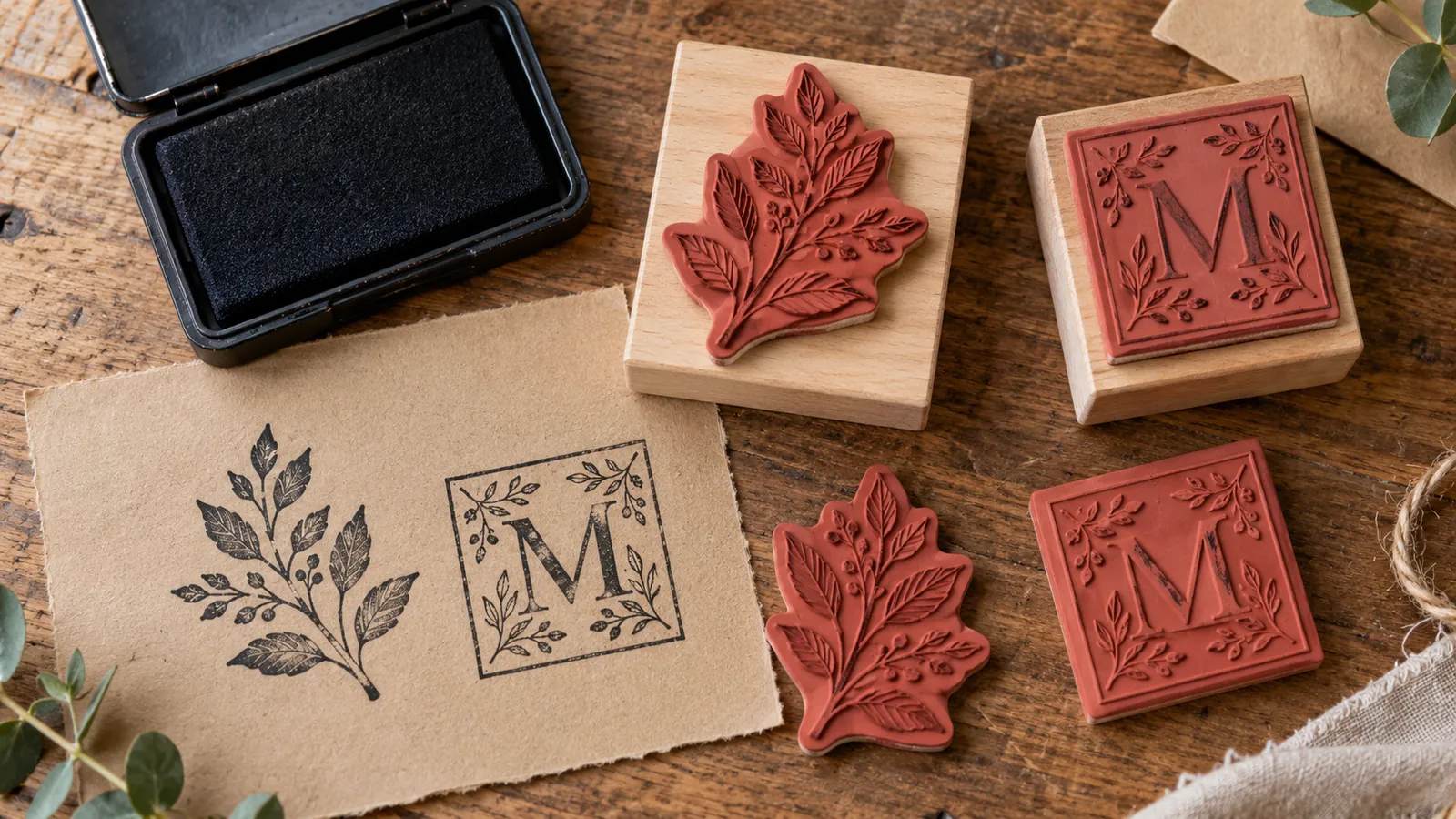
Making Rubber Stamps with a Laser Engraver
Laser engraving a rubber stamp means removing the background so the letters and logo stand up for inking. The artwork needs to be mirrored, and the raised details need supporting shoulders. Get those decisions right before you fill a sheet with designs. This guide covers rubber selection, file preparation, the workflow and the safety checks to make before each job.
Choosing laser rubber
Start with a named rubber grade made for laser engraving. Read the manufacturer’s processing instructions and Safety Data Sheet (SDS), and confirm compatibility with your laser. Don’t substitute an unidentified rubber sheet.
Laser suitability and odour claims are separate checks. One concerns compatibility with laser processing; the other describes odour for a particular product. Trodat’s published product information illustrates the choices:
- Standard laser rubber. Trodat’s 2023 catalogue describes CLASSICO as a standard, solvent-resistant grade. Its current product page lists compatibility with water-based and solvent-based inks. Check the ink requirements before choosing a sheet.
- Odour wording and thickness. Trodat’s current product pages label its 2.3 mm AERO and AERO+ sheets “No odour”. Its 2023 catalogue describes the separate AERO+ 5 mm sheet as low-odour during engraving. Check the exact grade and thickness rather than assuming all laser rubber is odour-free.
- Oil-resistant laser rubber. Trodat’s 2023 catalogue lists OLIO as oil-resistant, with no expansion using oil-based inks. Confirm the current specification and availability for your application.
See our rubber stamp materials page when planning your material choice. Confirm the grade and its documentation before ordering for a particular ink or application.
Mirror the artwork once
The rubber face needs to be the mirror image of the impression you want on paper. Keep a readable master design, then flip the production artwork horizontally before engraving.
Mirroring and background removal do different jobs. Mirroring reverses the layout; on Epilog systems with Stamp mode, that mode prepares the engraving so the background is removed and the printing details remain raised. Follow the artwork conventions in your machine’s manual.
Check where mirroring happens. If you have already flipped the artwork, don’t mirror it again in the driver. Epilog’s Fusion M2 manual also warns that its driver Mirror function leaves vector cut lines unchanged. If you are cutting an outline, mirror the design and outline together in the artwork, and check their alignment before sending the job.
What shoulder angle does
Look at a raised letter from the side. Its shoulder is the sloping rubber supporting the printing surface. Epilog’s stamp settings let you adjust that slope: a higher Shoulder setting gives a wider angle and more support.
Widening is a different control. It changes the width of the character at the printing surface. It does not change the shoulder angle. Keep the two adjustments separate when testing.
Start with the recommendation for your model and software version. Epilog manuals show different scales for shoulder settings across generations, so a value copied from another driver is not a universal angle in degrees. Test the actual artwork, including its smallest lettering, before committing to a batch.
Workflow
A practical sequence:
- Prepare the layout. Check spelling, dimensions and the mirrored design. Include the cut outline, and confirm which areas should remain raised.
- Load and focus. Place the specified laser rubber on the bed and focus according to the machine’s instructions.
- Set up Stamp mode. Use the stamp controls for your software version. Epilog’s sample project uses Stamp engraving with a Bounding Area fence; check the fence method against your layout.
- Run a small test. Start with manufacturer settings for your machine and wattage, then test on the actual rubber. Check the engraving and make an inked impression before running the full layout.
- Engrave and cut. Run the tested job with extraction operating and air assist on for vector cutting. Stay with the machine throughout.
- Clean, mount and proof. Remove the engraved pieces and clean off the debris as directed for the material. Attach the rubber to the stamp block with a suitable adhesive, ink it and check the finished impression.
Save the tested settings with the rubber grade and job file. Record the machine, wattage, resolution, engraving and cutting settings, shoulder and widening values. That gives you a useful starting point for repeat work.
Safety before every run
An odour-free label does not remove the need for extraction. Epilog warns that laser processing produces fumes, vapours and particles that may be harmful. Run the machine only with its exhaust connected and operating, venting outdoors or through a suitable filtration unit.
- Keep prohibited materials out. Never laser PVC, vinyl or other chlorine-containing materials. Epilog warns that they produce toxic, corrosive gases that can harm the operator and damage the machine. Check the material documentation before loading an unfamiliar sheet.
- Stay with the job. Never leave a running laser unattended, during engraving or cutting.
- Use air assist for vector cutting. Follow your machine’s instructions rather than treating it as optional.
- Keep the machine clean. Remove residue and offcuts, including debris underneath the cutting table. Keep the surrounding area clear of combustible clutter.
- Keep a maintained and inspected fire extinguisher available. Follow the manufacturer’s fire precautions before starting work.
Getting started
Synergy is Canada’s exclusive Epilog dealer. Contact us with your intended stamp size, artwork and rubber grade to discuss an Epilog laser system. Our showrooms in Delta, BC and Mississauga, ON are available by appointment.
Related: Laser safety basics and our laser-safe materials guide.
Questions About a Laser?
Call or send us your application. Demos are available at our Delta and Mississauga showrooms by appointment, or live online: send us your files and we'll run your parts on a real laser while you watch over video call.